
The TDAC system works for most travelers, but when it fails, it fails at the worst possible time — usually when you are standing at the immigration counter. This guide covers every known TDAC error, what causes it, and how to fix it before you fly or on the spot at the airport.
ERROR → FIX
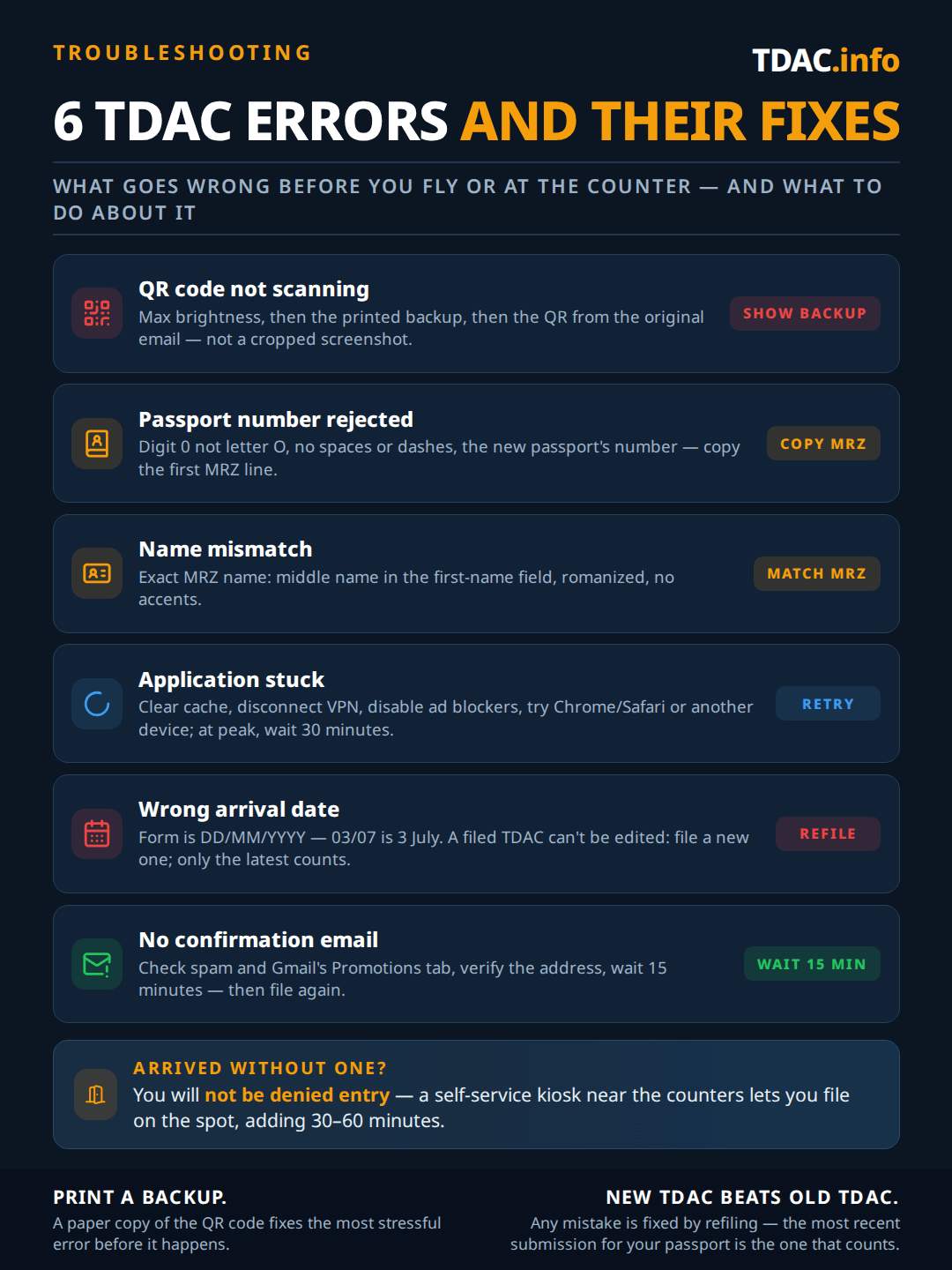
Error 1: QR Code Not Scanning at Immigration
Set screen brightness to maximum, try the printed backup, or show the original confirmation email — if nothing works, the officer will direct you to a self-service kiosk. This is the most stressful error because it happens at the counter.
Common Causes
- Screen brightness too low: Airport lighting makes dim screens unreadable. Turn brightness to maximum before you reach the counter.
- Cracked or scratched screen: Damage over the QR code area can prevent scanning. Always carry a printed backup.
- Wrong QR code: If you filed multiple applications (e.g., for family members), make sure you are showing YOUR code, not a family member's.
- Screenshot vs. original: Some travelers screenshot the QR code and crop it too tightly. The scanner needs the white border around the code.
How to Fix
- Maximize screen brightness and try again.
- Show your printed backup copy (always print one before traveling).
- Open the original confirmation email and show the QR code from there (not a screenshot).
- If nothing works, the officer will direct you to a kiosk to re-file on the spot. This adds 30–60 minutes but you will not be denied entry.
Error 2: Passport Number Rejected
The most common causes are confusing the letter O with zero, including spaces or dashes, or accidentally using an old passport number. The TDAC form rejects your passport number during filing, or the QR code does not match at immigration.
Common Causes
- Letter O vs. zero (0): The most common mistake. Passport numbers use the digit zero (0), not the letter O. Check your MRZ line (the two lines of characters at the bottom of your passport photo page).
- Including spaces or dashes: Enter the passport number exactly as it appears, with no spaces, dashes, or special characters.
- Old passport number: If you recently renewed your passport, make sure you are entering the NEW passport number, not the old one.
- Extra characters: Some countries include a check digit or country prefix. Only enter the passport number itself.
How to Find Your Correct Passport Number
Open your passport to the photo page. Look at the MRZ line (the two lines of machine-readable text at the bottom). Your passport number is in the first line, after the country code. Enter exactly those characters — no more, no less.
Error 3: Name Mismatch
Use the exact name from your passport MRZ line (the two-line code at the bottom of your photo page), including all middle names, without accents or special characters. Your name on the TDAC must match your passport exactly, or it will cause a flag at immigration.
- Middle name issue: If your passport MRZ shows SMITH<<JOHN<MICHAEL, enter First Name: JOHN MICHAEL, Last Name: SMITH. Include the middle name in the first name field.
- Preferred vs. legal name: Use the name exactly as printed in your passport MRZ line, not your preferred or shortened name.
- Transliteration: For non-Latin passports, use the romanized spelling shown in the MRZ line.
- Accented characters: If your passport shows accented letters (e.g., ü, ñ, ç), enter them without accents (u, n, c) as the MRZ line does.
Error 4: Application Stuck / Not Submitting
Clear your browser cache, disable VPN and ad blockers, or try a different browser (Chrome works best). The form sometimes loads but will not submit, shows a spinning loader indefinitely, or returns a generic error.
- Browser issue: Clear your browser cache and cookies, then try again. Use Chrome or Safari — some older browsers cause compatibility issues.
- VPN interference: If you are using a VPN, disconnect it. Some VPN exit nodes are blocked by the TDAC system.
- Ad blocker: Disable ad blockers and privacy extensions temporarily. They can block the form submission scripts.
- Mobile vs. desktop: If the mobile form is not working, try desktop (or vice versa).
- Peak traffic: The system occasionally slows down during peak filing periods. Wait 30 minutes and try again.
Error 5: Wrong Arrival Date
File a new TDAC with the correct date — the system uses DD/MM/YYYY format, which causes thousands of date mismatches when confused with MM/DD/YYYY. You entered the wrong arrival date, or your flight changed after filing.
- Date format confusion: The form uses DD/MM/YYYY (day first). Americans often enter MM/DD/YYYY by habit. If you entered 03/07/2026 meaning March 7, the system may have recorded July 3.
- Flight change after filing: If your flight date changes, you need to file a new TDAC with the correct date. The old one will not automatically update.
Can You Fix a Filed TDAC?
On the official government portal, you cannot edit a submitted TDAC. You must file a new one with the correct information. The old submission is simply ignored — only the most recent QR code matters. If you filed through TDAC.info, contact support@tdac.info and we will correct and refile at no extra cost.
Error 6: No Confirmation Email
Check your spam/junk folder and Gmail Promotions tab first, then verify you entered your email correctly. If still missing after 15 minutes, try filing again. You filed the TDAC but never received the QR code email.
- Check spam/junk folder: The confirmation email often ends up in spam, especially for Gmail and Outlook users.
- Check the email address: A typo in your email address means the QR code was sent to the wrong inbox.
- Wait 15 minutes: During peak periods, confirmation emails can be delayed. Do not file again immediately — duplicate filings cause confusion at immigration.
- Check promotions tab: Gmail sometimes routes automated emails to the Promotions or Updates tab instead of the Primary inbox.
What Happens If You Arrive Without a TDAC?
You will not be denied entry. But you will be directed to a self-service kiosk near the immigration counters to fill out the TDAC on the spot. This adds 30–60 minutes to your arrival time and requires airport Wi-Fi (which can be unreliable). File before you fly to avoid this.
Can I file a new TDAC if I made an error?
My QR code shows a different name than my passport. Will I be denied?
I filed the TDAC but my flight was canceled. Do I need a new one?
The government portal is down. What do I do?
Related Guides
TDAC Checklist — gather everything before you start filing.
How to Fill Out TDAC — every field explained step by step.
TDAC vs TM.6 — what changed from the old paper card.
TDAC for Families — filing for children and group travel.
Avoid TDAC Errors Entirely
Our experts review every submission for passport number typos, name mismatches, and date format errors before filing. If anything is wrong, we fix it before it becomes a problem at the airport.
Start TDAC ApplicationReviewed by
Jason Hartley
Travel Documentation Specialist · TDAC.info
Last reviewed on
Fact-checked against the official Thai Immigration Bureau guidance.